What's changed and why?
We changed the name of epost Connect™ to Connect, to reflect that Connect is separate from epost. While epost was retired December 2022, customers can continue to use Connect.
What are the 3 Connect user roles?
-
Administrator Connect administrators are responsible for creating and managing accounts, as well as granting and removing access to Connect collaborators.
-
Collaborator Connect collaborators create conversations and invite other users (known as participants) to collaborate in those conversations.
-
Participant Connect participants take part in conversations (exchanges of information and documents) created by collaborators.
I received an email invitation. How do I sign up?
If you don’t have an email address associated with a Canada Post account, you’ll need to create one.
To create an account:
-
Follow the Create an account link in the email you received.
-
Create your account by filling out the online form.
-
You’ll be sent an email to verify your account
-
Verify your email by pressing the Verify now button.
When the verification is complete, you’ll get a welcome email. Do not click the Sign in button at the bottom of the welcome email. You must go back to the original email invitation from Connect to sign in.
Why did I get an error about my username or password?
This error message happens when either your username or password is incorrect.
-
If you know your username: Follow the Password? link at the bottom of the login screen.
-
If you don’t know your username: Follow the Username? link at the bottom of the login screen.
-
When you’re able to confirm your username and password:
- Go back to the original email you received from Connect.
- Follow the link again.
- Log in with your credentials.
Why did I get an error when verifying my email?
This error message happens when the email verification process couldn’t be completed. You can try again a bit later or, if you still can’t verify your email within 24 hours, you’ll need to restart the registration process using a different username.
If you continue to have issues, please contact a customer service representative at 1-877-376-1212.
I verified my email and see the dashboard. What now?
Great, you’re almost done! To complete the Connect registration process:
-
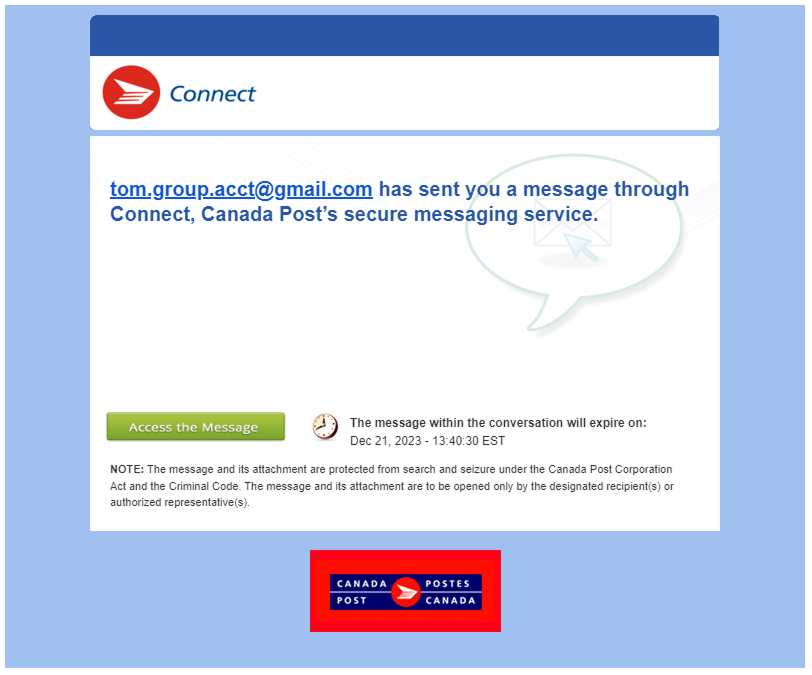
Go back to the invitation email you received from Connect (shown below).
-
Press the Sign in button in the email.
- Enter your new username and password.
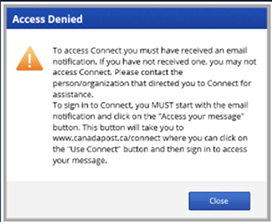
Why did I get an “Access Denied” error?
This error happens when an account isn’t linked before logging into Connect. Now that you’ve verified your email, you need to link an account.
-
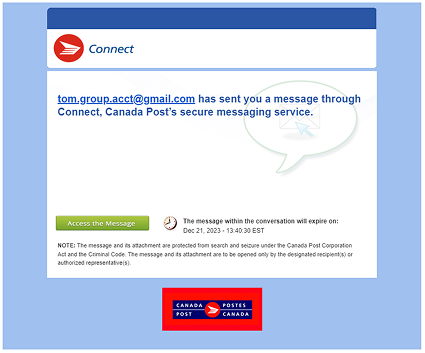
Go back to the invitation email you received from Connect (shown below).
-
Press the Sign in button in the email.
- Enter your new username and password.
Why did I get an error when verifying my email?
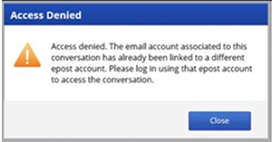
For security reasons, you can only have 1 Canada Post username associated with an email address. This error message means you already have a username associated with the email address you used to register. To log in, use the existing account that’s linked to the email address to which the email invitation was sent.
How do I update my Administrator account?
Contact support by using this form to update your Administrator account.
Why did I get an error message about file size?
You can only add up to 1 GB of files per message and 20 GB of files within a conversation.
Why did I get an HTTP 200 error when I tried to upload a document?
This error message results from an issue with the filename of a document. Make sure the filename is less than 120 characters long.

Why is content missing in a conversation?
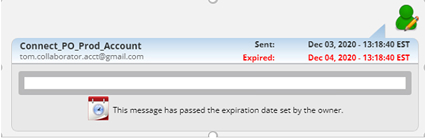
All messages in Connect have an expiration date that’s set by the person who created the conversation. This error message happens when a message expires, and you can no longer access the content.
Why didn’t my group conversation appear in the group inbox?
This can stem from a system issue or, sometimes, it’s by design.
By design, the system won’t allow a conversation to be created in group account and then a member of that group to be invited to the conversation. If you try to do this, the conversation won't be created.
If that’s not what happened, contact a customer service representative at 1-877-376-1212.